Google TV Interactive TV Guide 2026
(For BRAVIA 9II / BRAVIA 7II Series)
Get the most out of your TV through Sony's Interactive TV Guide
Find out how to do initial setup, set up digital channels, and many more.
Click through the Interactive TV Guide and you may discover new functions which you didn’t know existed
on your Sony TV!
How to use
1. Scroll down and click on the "Select your topic" drop-down menu.
2. Choose the topic you need help with (e.g., Initial Setup, How to install Apps).
3. Follow the step-by-step instructions and on-screen images to complete the task on your BRAVIA TV.
Initial Setup
1. Select your preferred language.
For this example, select English (Singapore) and press Enter button on your remote control.
2. Select your region.
For this example, select Singapore and press Enter button on your remote control.
3. Quickly set up with your phone. You can setup the TV by scanning the QR code on the TV.
For this example. we will use manual setup (with TV remote control).
Scroll down to Manual setup (With TV manual)
4. Select Use at home and press Enter button on your remote control.
5. Select your Wi-Fi Network and press Enter button on your remote control.
6. Enter Password, select and press
Enter button on your remote control.
7. Once connected, TV will display Connected.
8. BRAVIA Privacy Policy. Scroll  down to Agree to all lf the items above.
Select it and then select Agree to the Privacy Policy and proceed and press Enter button on your remote control.
9. Sign in to your Google Account. Enter your email or phone number.
Select on your remote control to enable onscreen
keyboard.
Once complete, select Next and press Enter button on your remote control.
10. Enter your Google Account password.
Select on your remote control to enable onscreen
keyboard
Once complete, select Next and press Enter button on your remote control.
11. Review Google Terms of Service
Select Accept and press Enter button on your remote control.
12. Accept Google service
Select Accept and press Enter button on your remote control.
13. Choose your services. Install additional apps from Google Play store. TV will show
recommended apps to install from Google Play store. Select which apps you want to
install and select Confirm and press Enter button on your remote control.
14. Choose your energy mode. For this example, we will select Low and press Enter button on your remote control.
15. Start your BRAVIA TV experience. Select Start and press Enter button on your remote control.
16. Power saving. Select your desire option (Off, Low or High) and press Enter button on your remote control.
17. Select the method that you would like to receive channels on your TV.
For Digital
channel setup, select Set up under Digital and press Enter button on your remote control.
18. Select Next and press Enter button on your remote control.
19. TV will start scanning for channels . Press Cancel if you want to cancel the scanning.
20. Once completed. select Next and press Enter button on your remote control.
21. For Analogue channel setup, select Set up under Analogue and press Enter button on your remote control. If Analoque channel setup are not required, select Skip to go to the next step.
22. Select the devices you would like to set up with your TV.
For this example, select
Connect later. and press Enter button on your remote control.
23. Specify how your TV is positioned.
For this example, select Table-Top stand
and press Enter button on your remote control.
24. Acoustic auto calibration
This set up will optimise the audio output of your
TV's speakers by measuring listening environment using the microphone on the TV
remote control.
Select Set up and press Enter button on your remote control.
25. If you are setting up for the first time, select While using the app and press Enter button on your remote control.
26. Select Allow and press Enter button on your remote control.
27. Select Start and press Enter button on your remote control.Follow the instruction on the screen.
28. Explore a variety of film-watching styles.
Select View More and press Enter button on your remote control.
29. How to use My Cinema
Select Next and press Enter button on your remote control.
30. Select Next and press Enter button on your remote control.
Screenshot is for illustration purpose only. Actual offer for your country may differ.
31. Enjoy Prime Video even more with BRAVIA. To learn more, select Get Started.
For this example, we will select Later and press Enter button on your remote control.
32. Set up AirPlay and HomeKit. Select Next and press Enter button on your remote control.
33. Accessibility Menu is available. Select Next and press Enter button on your remote control.
34. Introduction to the mobile app with remote control feature.
Select Next and press Enter button on your remote control.
35. Your TV is ready!. Select Start using the TV and press Enter button on your remote control.
Access to Help
1. Press the (Home)
icon on the remote control
2. Scroll down to Your apps under Apps categories
3. Scroll right to select Help and press Enter button on your remote control
4. Your TV will show Help screen which consists of Manual (Help Guide), Status & Diagnostics and Contact us
Change HDMI signal format
1. Press the Quick Settings
button on the remote control
2. Select Settings and press
Enter button on your remote control.
3. From the Settings screen, select Channels & Inputs and press Enter button on your remote control
4. Select External inputs and press Enter button on your remote control
5. Select HDMI signal format/VRR and press Enter button on your remote control
6. Select HDMI 3 (eARC/ARC) and press Enter button on your remote control
7. Select Enhanced format (Advanced) and press Enter button on your remote control
Channel Setup (Digital/Analog)
1. Press the Quick Settings
button on the remote control
2. Select Settings and press
Enter button on your remote control.
3. From the Settings screen, select Channels & Inputs and press Enter button on your remote control
4. Select Channels and press Enter button on your remote control
5. Select Channel setup and press Enter button on your remote control
6. Select Auto Tuning and press Enter button on your remote control
For Digital setup
7. Under Digital, select Set up and press Enter button on your remote control
8. Start channel scan for Digital, select Next and press Enter button on your remote control
For Analog setup
9. Under Analogue, select Set up and press Enter button on your remote control
10. Start channel scan for Analogue, select Next and press Enter button on your remote control
Check for System Software Update
1. Press the (Home)
icon on the remote control
2. Scroll down to Your apps under Apps categories
3. Scroll right to select Help and press Enter button on your remote control
4. Select Status & Diagnostics and press Enter button on your remote control
5. Select System software update and press Enter button on your remote control
6. Select Software update and press Enter button on your remote control
7. The TV will check for new software update.
8. If there is a new software update found, the TV will display software update is available. To update, select Update TV softwareand press Enter button on your remote control
Check TV Model or Firmware Version
1. Press the (Home)
icon on the remote control
2. Scroll down to Your apps under Apps categories
3. Scroll right to select Help and press Enter button on your remote control
4. You can see the model or software/firmware version installed on your TV on the bottom left of your TV screen.
How to install Apps
1. Press the (Home)
icon on the remote control
2. Move to Apps at the top of the screen
3. Scroll down to Search for apps and games under Apps categories and press Enter button on your remote control
4. In the search box, enter the name of the apps that you want to search.
For this example, we will search for Spotify app.
5. Select the app that you are looking for, for this example Spotify app and press Enter button on your remote control
6. Select Accept and press Enter button on your remote control
7. Select Install and app will start downloading. After downloading, the app is automatically installed and added. Its icon appears in the Home Menu, allowing you to launch it.
Power & Energy Setting
1. Press the Quick Settings
button on the remote control
2. Select Settings and press
Enter button on your remote control.
3. From the Settings screen, select System and press Enter button on your remote control
4. Select Power and energy and press Enter button on your remote control
There are five types of Power & Energy settings available:
Energy modes
5. Select Energy modes and press Enter button on your remote control
6. Select your desire choice Low, Optimised or Increased and press Enter button on your remote control to select it.
Auto Turn-off
7. Select Auto Turn-off and press Enter button on your remote control
8. Select Turn off TV when inactive and press Enter button on your remote control
9. Select your desired duration and press and press Enter button on your remote control to select it.
10. Select Turn off when watching and press Enter button on your remote control
11. Select your desired duration and press and press Enter button on your remote control to select it.
Power on behaviour
12. Select Power on behaviour and press Enter button on your remote control
13. Select either Google TV home screen or Last used input and press Enter button on your remote control to select it. Once you are done, select
button on your remote control to return to Power and energy menu.
Power saving
14. Select Power saving and press Enter button on your remote control
15. Select your desire choice Off, Low or High and press Enter button on your remote control to select it.
Eco Dashboard
16. Select Eco Dashboard and press Enter button on your remote control
17. In Eco Dashboard, you may check current power consumption level and power saving information.
Selecting Channel inputs
1. Press the (Input select)
button on the remote control
2. Select TV and press and press Enter button on your remote control
3. Select your desired TV channel.
Setup Apple AirPlay & HomeKit
1. Press the Quick Settings
button on the remote control
2. Select Settings and press
Enter button on your remote control.
3. From the Settings screen, select System and press Enter button on your remote control
4. Select Apple AirPlay & HomeKit and press Enter button on your remote control
5. Select Apple AirPlay & HomeKit settings and press Enter button on your remote control
There are six options available:
Airplay
6. Select AirPlay and press Enter button on your remote control to turn on or off.
Require Code
7. Select Require Code and press Enter button on your remote control to turn on or off.
8. You can select either First Time Only, Every Time or Use Password Instead. Once you are done, select button on your remote control to return to AirPlay and HomeKit Settings menu.
Subtitle and Captioning
9. Select Subtitles and Captioning and press Enter button on your remote control.
10. You can select your desired settings such as turning Closed Captions and SDH on or off, changing the style. Once you are done, select button on your remote control to return to AirPlay and HomeKit Settings menu.
About AirPlay
11. Select About AirPlay and press Enter button on your remote control.
12. You can check information of AirPlay Version, to enable or disable AirPlay Logging, set Analytics, and Acknowledgements. Once you are done, select button on your remote control to return to AirPlay and HomeKit Settings menu.
Reset Paired Devices
13. Select Reset Paired Devices and press Enter button on your remote control.
14. Select Unpair Devices and press Enter button on your remote control.
Set-up HomeKit
15. Select Set Up and press Enter button on your remote control.
16. Follow the instruction on-screen to scan the QR code in order to add the TV to HomeKit.
Update Electronic Guide Information
1. Press the Quick Settings
button on the remote control
2. Select Settings and press
Enter button on your remote control.
3. From the Settings screen, select Channels & Inputs and press Enter button on your remote control
4. Select Channel preferences and press Enter button on your remote control
5. Select Update Guide in Standby / Networked standby and press Enter button on your remote control to enable or disable it.
6. Select OK and press Enter button on your remote control
View Channel info
1. Press the ... button on the remote control
2. Select Info and press and press
Enter button on your remote control
3. TV will display the channel information.
View Digital Channel guide
1. Press GUIDE button at your remote control to view guide for this digital channel.
2. Digital Guide information on your channels will be shown.
Factory Data Reset
IMPORTANT: Be aware that if you perform a factory reset, all of the TV's data and settings (Wi-Fi and wired network setting information, Google account
and other login information, Google Play and other installed applications, etc.) will be erased, and the TV will return to how it was at the time of purchase.
1. Press the Quick Settings
button on the remote control
2. Select Settings and press
Enter button on your remote control.
3. From the Settings screen, select System and press  Enter button on your remote control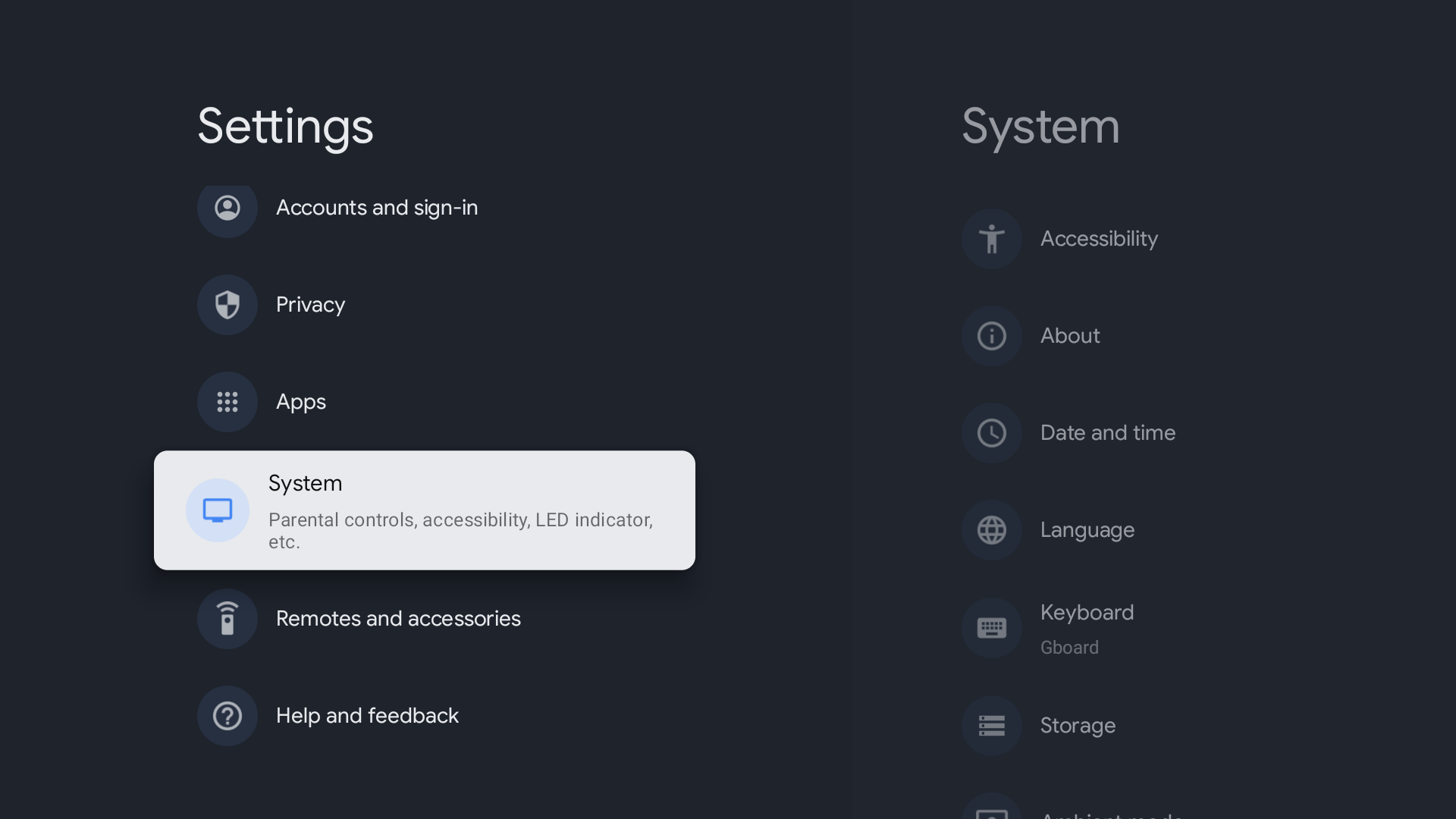
4. Select About and press Enter
button on your remote control
5. Select Reset and press Enter
button on your remote control
6. Select Factory data reset and press Enter button on your remote control
7. Select Erase everything and press Enter button on your remote control
8. Select Erase everything and press Enter button on your remote control to confirm. Factory reset
takes a few minutes.
Wait until the process completes. After factory reset process
completes, the TV will start the initial setup.